 SMGS Hub docs
Getting started
SMGS Hub needs Windows 11 (22H2 or later) on an x64 or ARM64 PC. It's a single-project WinUI 3 app on .NET 10, packaged as a self-signed MSIX that installs like any other app and shows up in Start as SMGS Hub.
cd windows
./scripts/build.ps1 -Platforms x64 -Install   # tests, signed MSIX, install (ARM64 PC: -Platforms ARM64)
smgshub                                        # or Start › SMGS Hub
On first launch the window asks you to sign in once with the mobile number your ACs are registered to; the session is saved and renewed silently from then on. This walkthrough starts right after sign-in, at adding your ACs.
The screenshots and recordings on this page come from the app's built-in demo account (smgshub --demo: three sample ACs, separate preferences), so no real phone number or device ids appear here. Every screen, label and behaviour is the real app. Use the Light / Dark switch at the top to see each screenshot and recording in either Windows theme; recordings play while they're on screen (not with Reduce Motion), and have controls to pause.
Adding your ACs
Right after you sign in, SMGS Hub lists every AC registered to your account so you don't have to go looking for the + button. Everything starts ticked; untick anything you don't want on this PC and press Add.
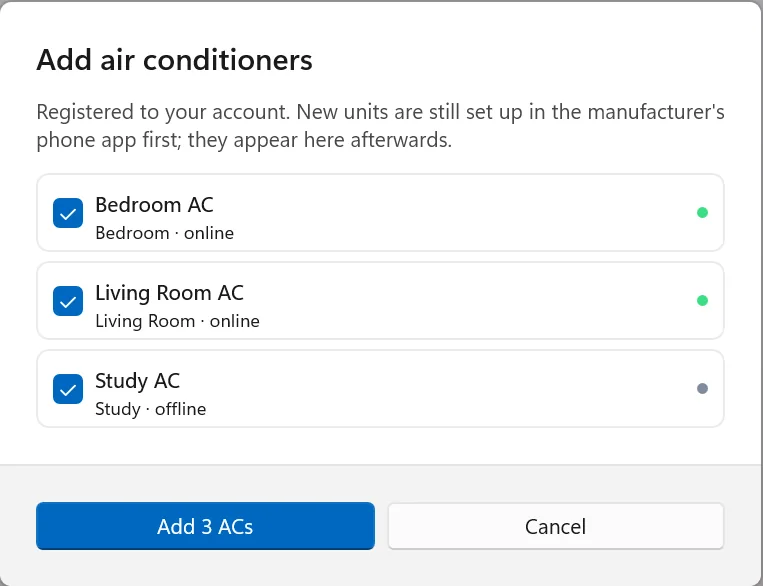
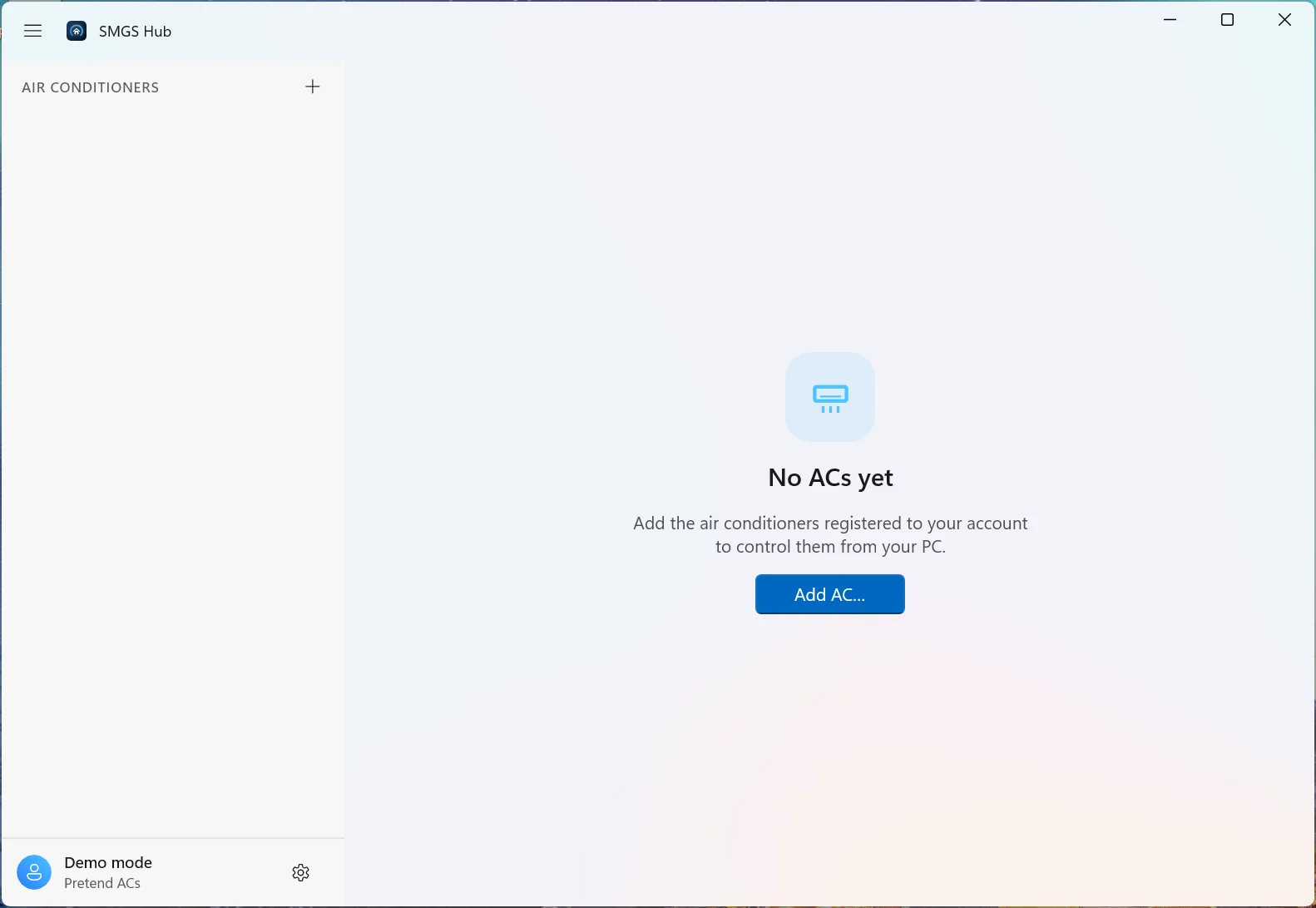
- Open the dialog any time with the + in the sidebar header or CtrlN. It only lists ACs that aren't already added.
- Brand-new units are still set up in the manufacturer's phone app first. Once they're on your account they show up here.
- Adding selects the first AC you added and fetches every new AC's live state.
The window at a glance
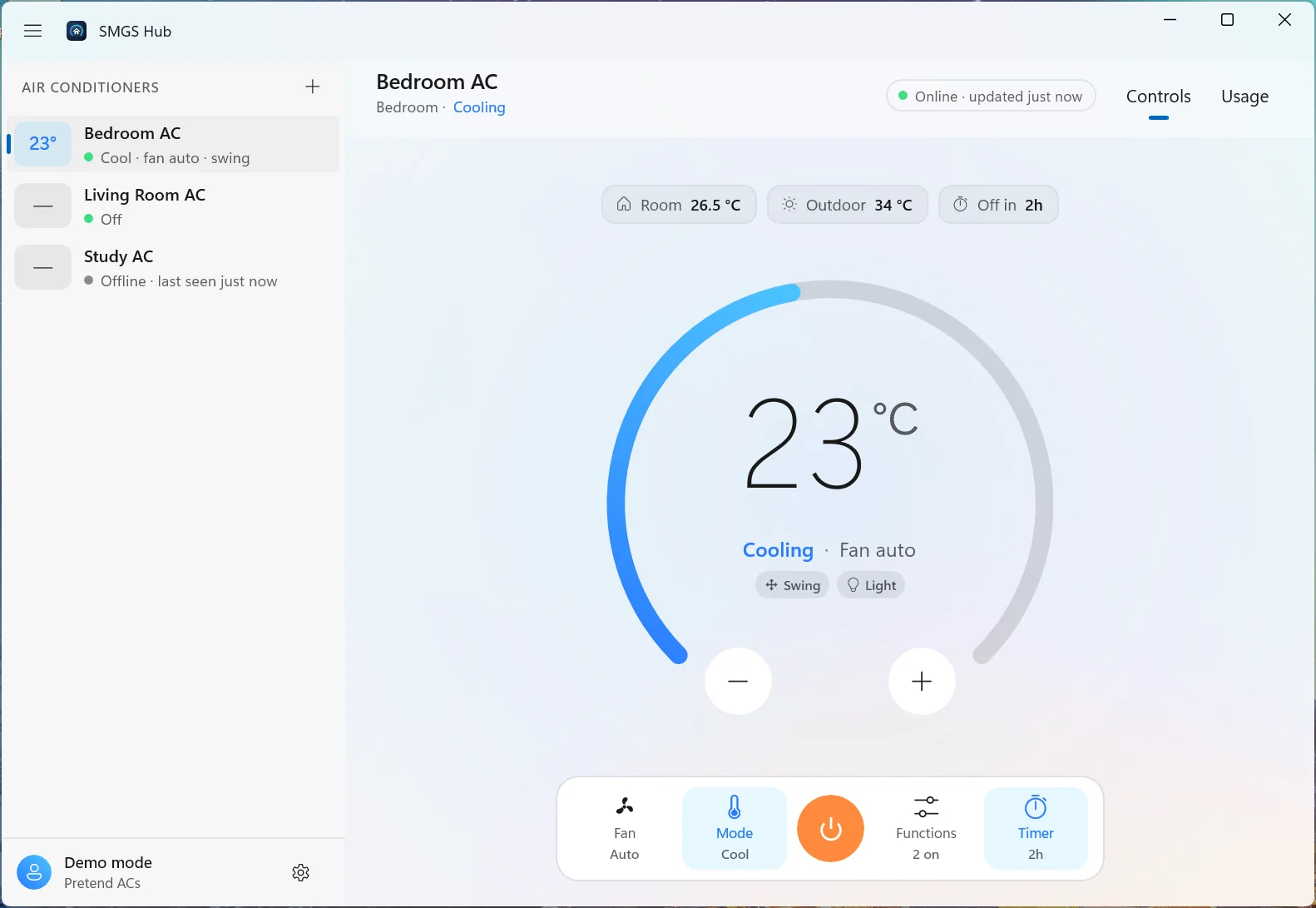
The window uses Mica and a custom title bar: the AC list on the left, and the instrument for the one you've selected on the right. Closing the window only hides it; SMGS Hub keeps running for the taskbar icon and the Widgets board, and Exit in the taskbar icon's menu quits it.
 1
2
3
4
5
6
7
8
9
10
1
2
3
4
5
6
7
8
9
10
- 1AC rows. Set point in the mode's colour, name, online dot and a one-line summary.
- 2Hide / show the AC list. The ☰ button or CtrlB; + in the list header (CtrlN) adds an AC.
- 3Account footer. Who's signed in, with Settings and Sign out.
- 4Header. AC name, room, and what it's doing right now ("Cooling", "Drying", "Off").
- 5Status pill. Online / Offline / Can't connect, when it last updated, and a spinner while a command is in flight.
- 6Controls / Usage. Switch between the instrument and the energy report (CtrlShift1 / 2, or CtrlTab).
- 7Info chips. Room and outdoor temperature, plus the timer only when one is set.
- 8The dial. The ring fills with the set point across the AC's range, over a soft glow in the mode's colour.
- 9− / +. Nudge the temperature one degree at a time.
- 10Control dock. Fan, Mode, Power, Functions and Timer, each showing its current value.
Sidebar
Each row leads with a temperature badge tinted in the AC's current mode, so you can read every room's state at a glance. A running AC shows its set point; one that's off or unreachable shows a dash.
- Summary line: Cool · fan auto · swing while running, Off when off, or Offline · last seen 3 min ago when the unit has dropped off Wi-Fi.
- Reorder by dragging rows, or with Alt↑ / Alt↓. The order is remembered.
- Right-click a row for Rename… (F2) and Remove from PC… (Del). Removing only affects this PC: the AC stays on your account and you can add it back any time.
- Hide the list with ☰ or CtrlB and the instrument takes the whole window. The choice is remembered between launches.
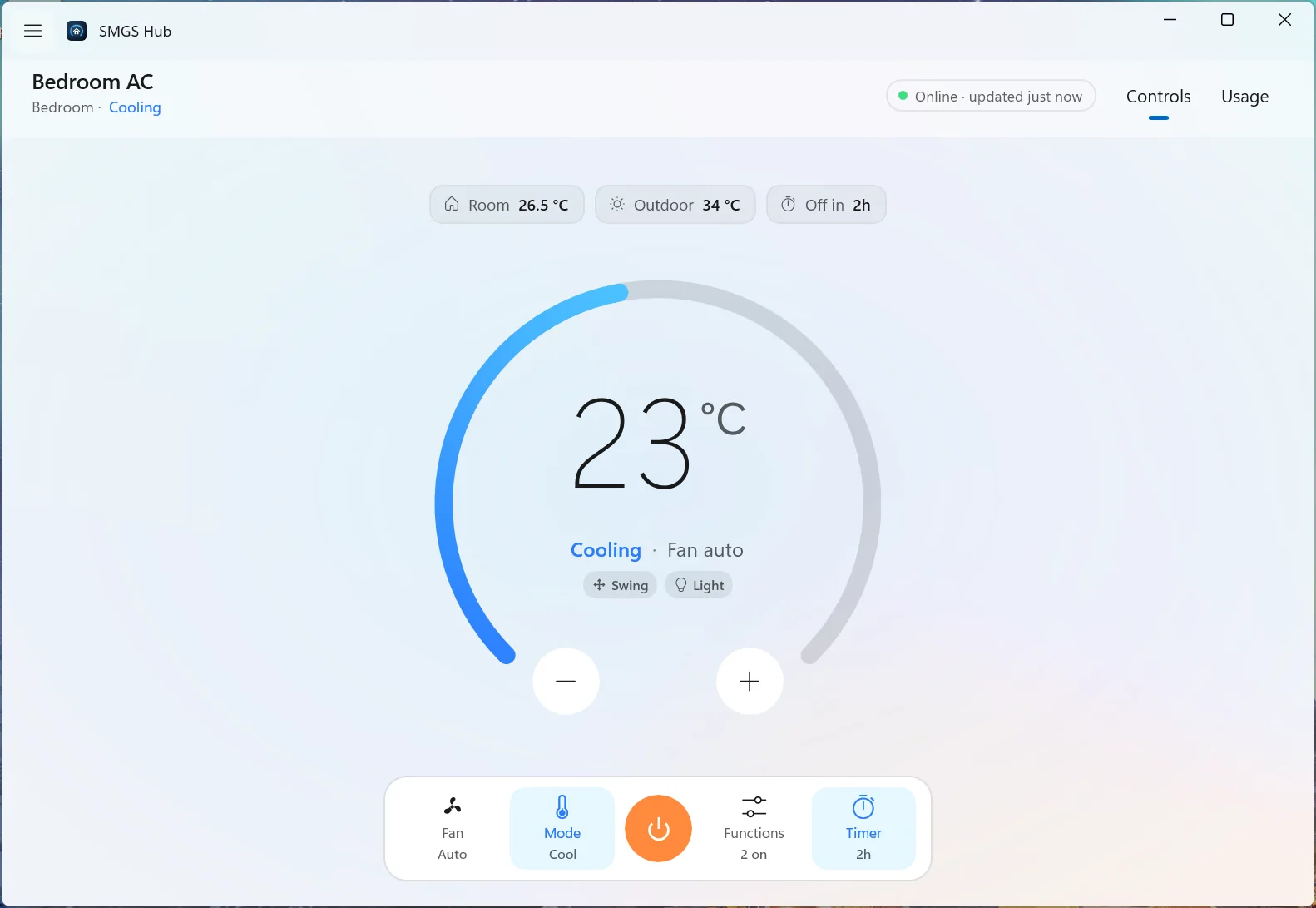
The thermostat dial
The dial is a ring that fills from the AC's lowest to highest set point (usually 17–30 °C) in a gradient of the current mode's colour.
- Large numerals show the target. In Fan mode the AC ignores the target, so the dial shows
--. - Mode line underneath: Cooling · Fan auto.
- Tags for whatever's switched on: Swing, Light, Eco, Sleep, Instacool, Self Clean, FC1–FC5.
- − / + change the target one degree per click (or Ctrl↑ / Ctrl↓). The number moves immediately; the command goes to the AC once you stop clicking (about 0.6 s), so five quick clicks send one change, not five.
- The dial is a single accessible slider: Narrator reads "Target temperature, 23", and the arrow keys adjust it.
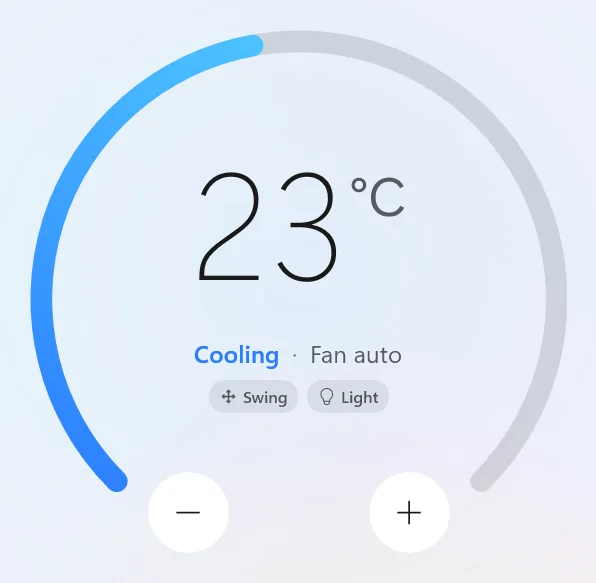
The control dock
The floating bar under the dial holds everything else. Each button shows its current value and opens a flyout anchored to itself. Power sits in the middle in warm orange, the only place that colour is used.
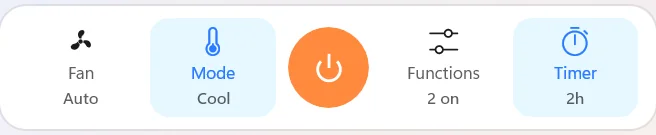
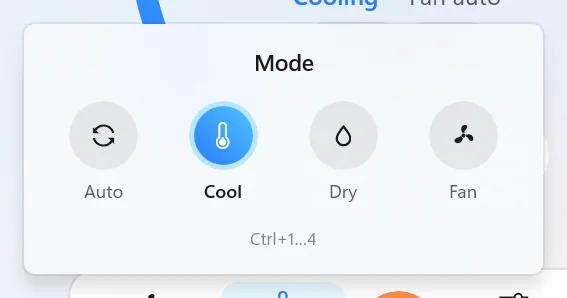
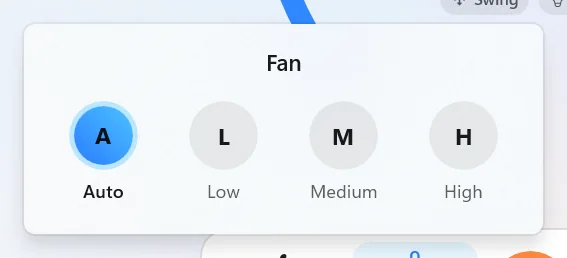
- Power turns the AC on or off (CtrlP). It's the only control that works whenever the AC is online.
- Picking a mode or fan speed closes the flyout and applies it immediately. Ctrl1–Ctrl4 pick the AC's modes in order without opening anything.
- Every change shows on screen instantly. If the AC rejects it, the app re-reads the AC's real state and explains what went wrong in a banner.
Functions
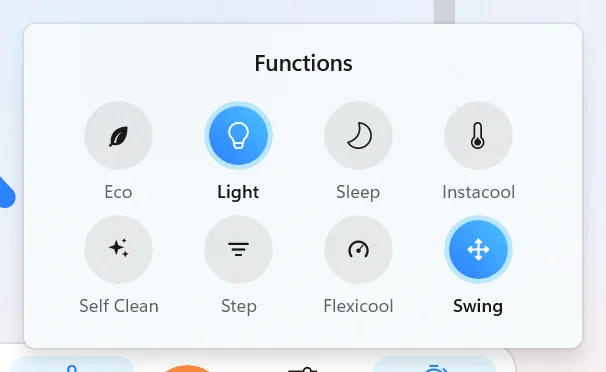
| Function | What it does |
|---|---|
| Eco | Energy-saving cooling. Cool mode only; not with Sleep. |
| Light | The AC's display light on or off. |
| Sleep | Gentle night profile. Cool mode only; not with Eco. |
| Instacool | Maximum cooling fast. Cool mode; locks the set point. |
| Self Clean | Dries and cleans the coil. Cool or Dry; locks everything else while it runs. |
| Step | Moves the vertical louver to its next fixed position (stops vertical swing). |
| Flexicool | Caps cooling capacity to save power: FC1–FC5. Tap the active level to turn it off. |
| Swing | Opens separate vertical and horizontal swing switches (horizontal only if the unit has it). |
Timer
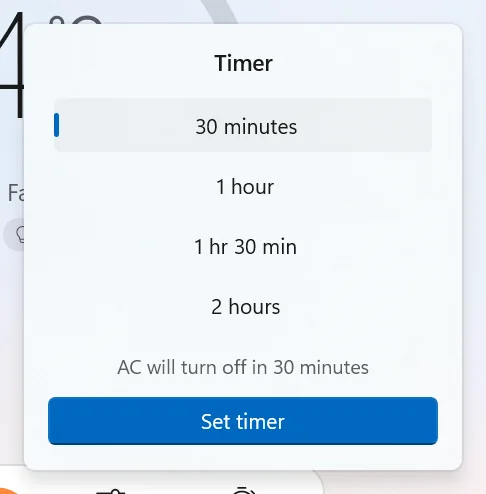
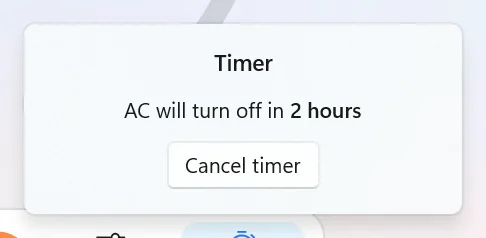
The timer counts down in the AC's own 30-minute steps, up to 24 hours. Its meaning follows the power state: while the AC is running it switches it off; while it's off it switches it on. It's the one control besides Power that works while the AC is off.
Why a control is greyed out
SMGS Hub mirrors the Carrier app's rules so you can never send a combination the AC would refuse. Dimmed controls explain themselves in a tooltip.
| Control | Available when | Tooltip when it isn't |
|---|---|---|
| Everything | The AC is online | The AC is offline |
| Temperature | On, not Fan mode, Instacool off | (− / + dim; dial shows -- in Fan mode) |
| Mode, Functions | The AC is on | Turn the AC on first |
| Fan speed | On, in Cool or Fan, with Eco and Sleep off | Fan speed is automatic in Auto and Dry mode · fixed while Eco or Sleep is on |
| Eco / Sleep | Cool mode, and not both at once | Eco can't run with Sleep |
| Instacool, Flexicool | Cool mode | Instacool works in Cool mode |
| Self Clean | Cool or Dry, with Eco and Instacool off | Self Clean works in Cool or Dry mode |
| Timer | Any time, except during Self Clean | Not available during Self Clean |
Colour language
Every surface that signals state (ring, glow, row badge, dock highlight, chart bars, taskbar icon, widget ring) draws from one tint per mode. Grey means the AC isn't actually running. Warm orange is reserved for Power, and green only ever means online.
The window follows the Windows theme unless you pick Light or Dark in Settings; the taskbar flyout and the widget always follow Windows.
Offline & errors
When an AC loses its Wi-Fi, its row says Offline · last seen …, the dial and dock dim, and a banner explains what to check. If it's the cloud service that can't be reached instead, the banner says so, so you know whether the problem is the AC or the connection.
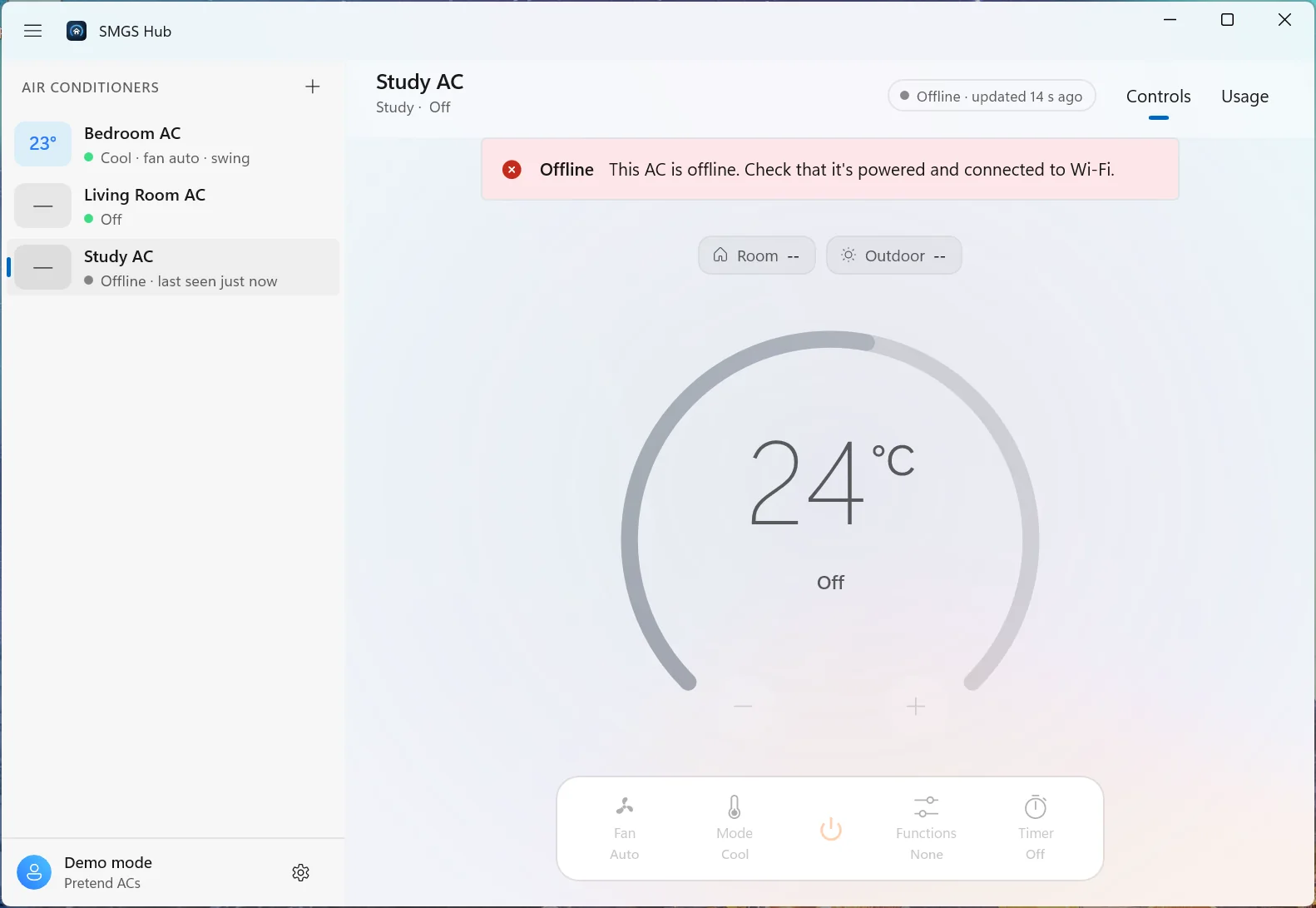
--; nothing can be sent until it's back.Usage & cost
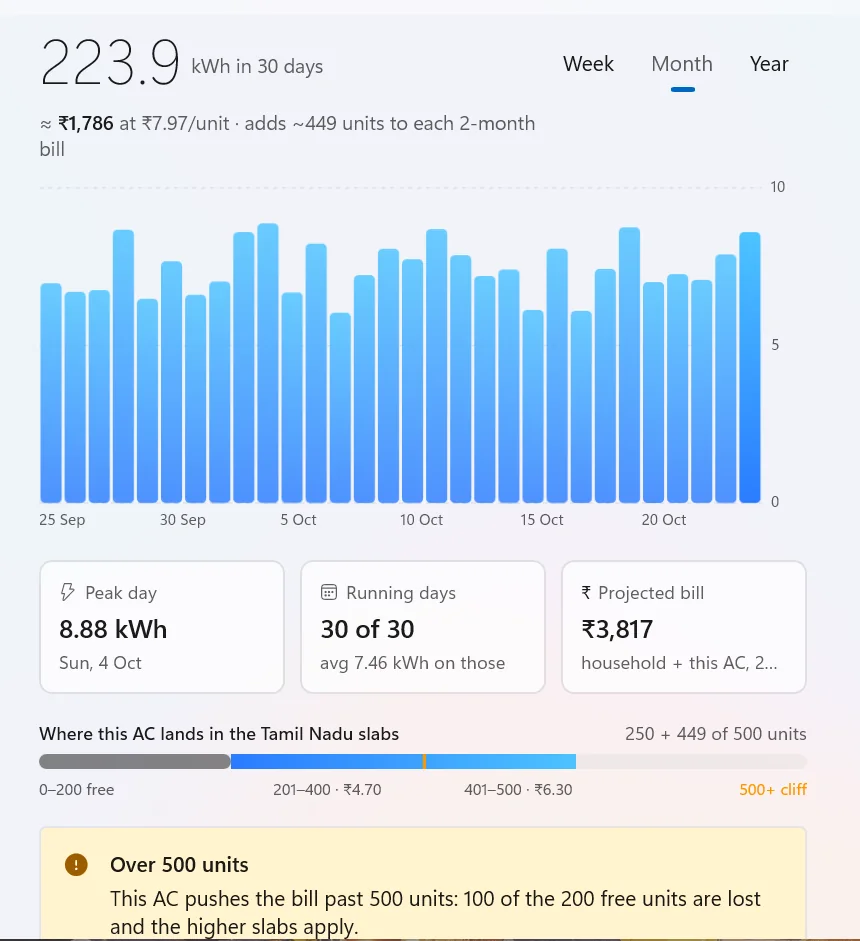
The Usage tab turns the AC's own energy meter into a report for the last week, 30 days or 12 months, and prices it the way your electricity bill actually works.
Reading the report
- Headline: total kWh for the period and what it costs, with the effective price per unit.
- Chart: one bar per day (per month for Year). Days the AC didn't run show a flat tick instead of a gap.
- Cards: peak day, how many days it ran (and the average on those days), and the projected two-month bill (or the average per day on a flat rate).
- Meter restarts: the AC's meter occasionally restarts from a lower value; usage is summed from increases only, so it never goes negative.
Tamil Nadu slabs
Domestic (LT I-A) bills are charged every two months on slabs, and the first 200 units are free as long as the household stays within 500 units. SMGS Hub stacks this AC's projected units on top of everything else on your meter (set in Settings), so its cost is the extra it actually adds to your bill.
The strip shows where the AC lands: 0–200 free, 201–400 at ₹4.70, 401–500 at ₹6.30. If the AC pushes the household past 500 units, a warning explains that 100 of the free units are lost and the higher slabs apply.
Taskbar icon & flyout
The counterpart of the Mac's menu bar widget, in the notification area of the taskbar. Windows 11 doesn't let apps put their own controls on the taskbar itself, so this is SMGS Hub's taskbar widget. The icon shows its AC at a glance:
- Running with a set temperature: the temperature, in the mode's colour.
- Running in Fan mode: the fan glyph.
- Off: the AC glyph.
- Can't be reached: the AC glyph struck through.
Windows hides new icons under ^ at first. To keep it on the taskbar, drag it out of the overflow, or turn it on in Settings › Personalisation › Taskbar › Other system tray icons. Hover it for a tooltip such as SMGS Hub · Bedroom AC · Cooling to 23 °C.
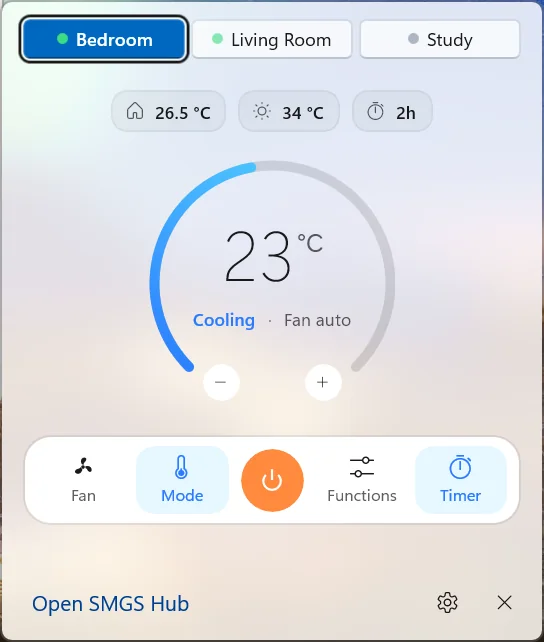
- Click the icon for the quick-controls flyout: an AC switcher (buttons for up to three ACs, a drop-down beyond that), the compact instrument, and Open SMGS Hub (CtrlO), Settings and Exit. It closes when you click elsewhere or press Esc.
- Readings show an icon and the value (room, outdoor, timer) so all three fit; hover one for its name.
- Its own AC: the icon and flyout keep their own AC. Switch with the buttons at the top (the flyout stays where it is); switching here doesn't change the window, and switching in the window doesn't move the icon. Each remembers its choice.
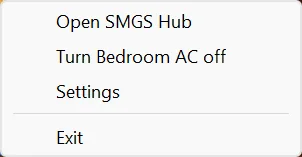
- Right-click for a short menu: open the window, turn the icon's AC on or off, Settings, and Exit (the only way to quit, since closing the window only hides it).
- Jump list: right-click SMGS Hub on the taskbar (when the window is open) or in Start for a Turn … on or off entry per AC.
Widgets board
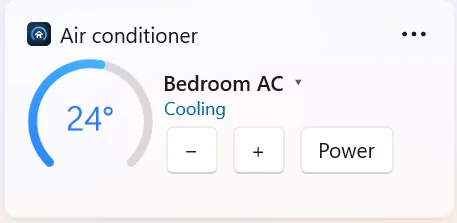
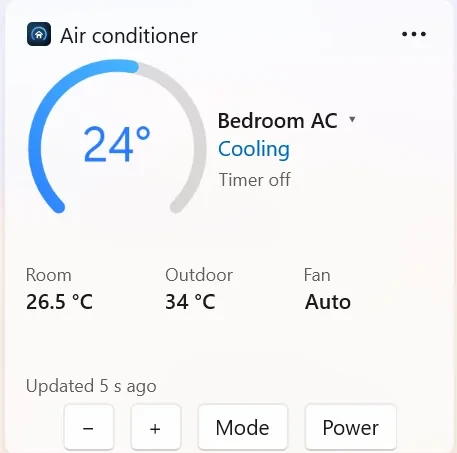
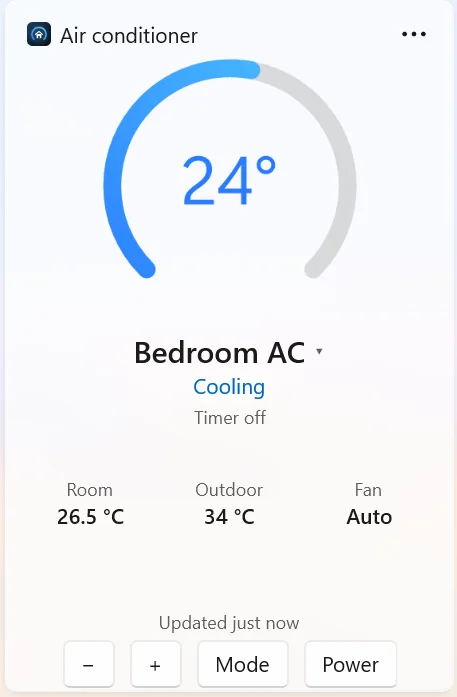
Open the Widgets board with WinW, choose Add widgets, and pick SMGS Hub › Air conditioner. Every size shows one AC with its controls, and the board keeps it live while it's open.
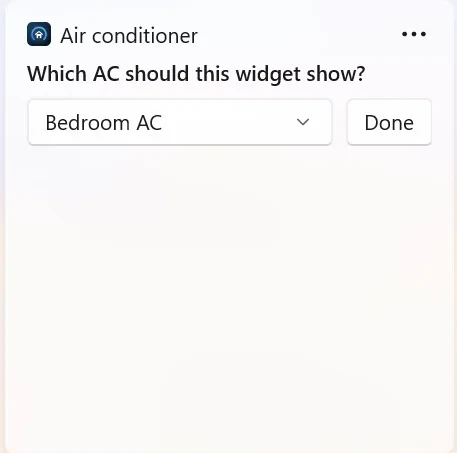
- Each widget keeps its own AC, separate from the window and the taskbar icon, so you can pin one per room.
- Change it later by tapping the AC's name (the ▾ next to it) or with Customize widget in the widget's ··· menu. If its AC is removed from the PC, the widget asks again.
- Sizes come from the ··· menu: small, medium and large all show the same AC, laid out for their shape.
- Buttons: − and + nudge the temperature, Mode switches to the next mode, and Power turns the AC on or off; the card shows the result.
- Offline: the widget says Offline in place of the mode, and its buttons dim.
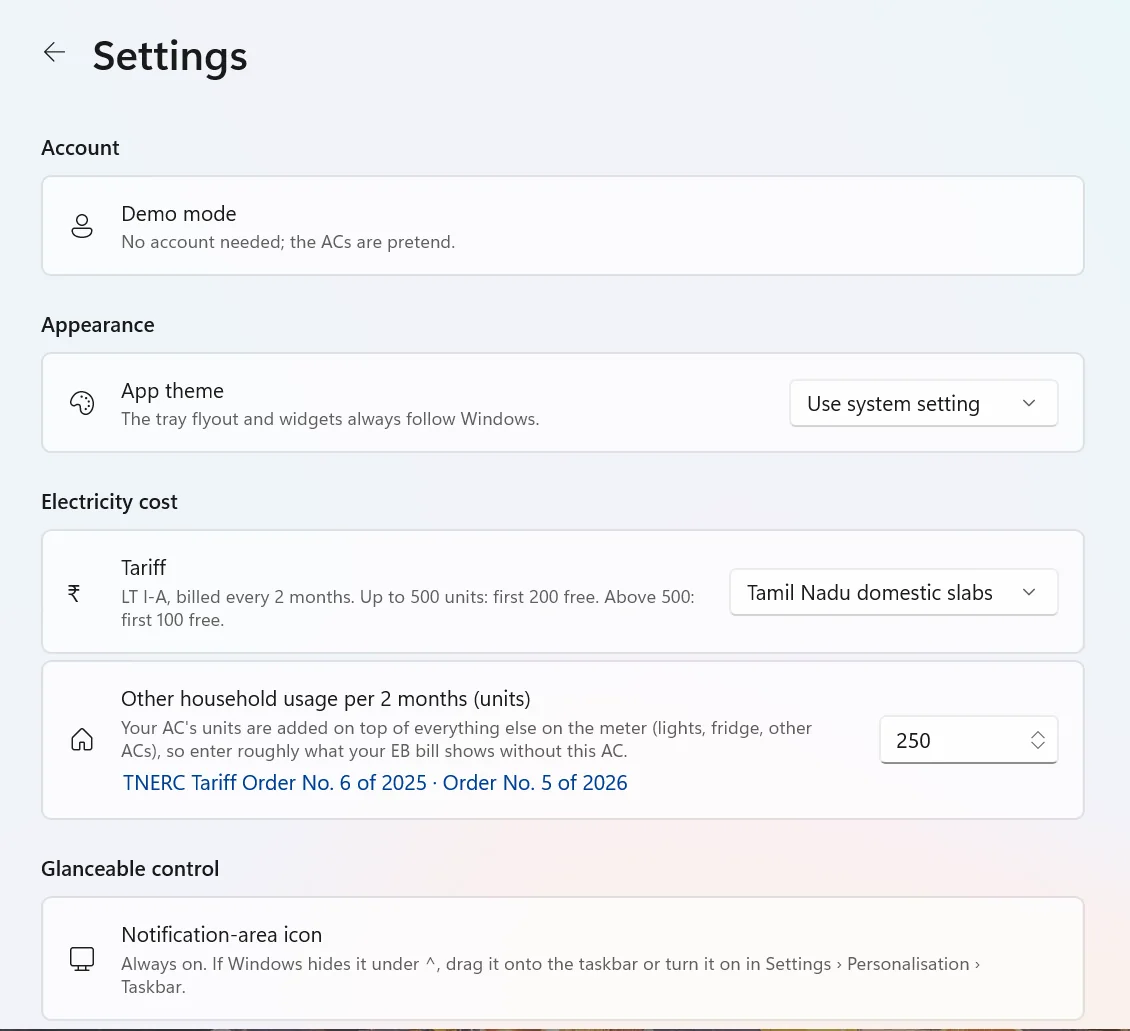
Settings
Open with Ctrl,, the gear in the sidebar footer, or Settings in the taskbar flyout and menu.
- Account: who's signed in, and Sign out…. Signing out asks first, because it also removes your ACs from this PC and forgets the saved sign-in; you'll need a new OTP to come back.
- Appearance: the window's theme: use the system setting, Light or Dark. The taskbar flyout and widgets always follow Windows.
- Electricity cost: Tamil Nadu domestic slabs (enter roughly what your EB bill shows for two months without this AC) or a flat price per unit.
- Glanceable control: where to find the taskbar icon if Windows has hidden it.
- Open at sign-in: start SMGS Hub with Windows so the taskbar icon and widgets are always ready.
Keyboard shortcuts
| Action | Window |
|---|---|
| Power on / off | CtrlP |
| Temperature up / down | Ctrl↑ / Ctrl↓ |
| Pick a mode | Ctrl1–Ctrl4 (the AC's modes in order) |
| Controls / Usage tab | CtrlShift1 / CtrlShift2, or CtrlTab |
| Add an AC | CtrlN |
| Show / hide the AC list | CtrlB |
| Rename / remove the selected AC | F2 / Del |
| Move the selected AC up / down | Alt↑ / Alt↓ |
| Refresh every AC | F5 |
| Settings | Ctrl, |
In the taskbar flyout, CtrlO opens the window and Esc closes the flyout.
How it stays live
SMGS Hub talks to the Jio Smart Living cloud that the Carrier app is built on: a REST API for sign-in, account and energy history, and a secure MQTT connection for commands and live state.
- One process, every surface: the window, the taskbar icon and flyout, and the Widgets board provider share one connection and one model, so they always agree.
- Pushed updates: when anyone changes an AC (the remote, the phone app, another PC), the cloud pushes it and every surface updates within moments.
- Polling: every 15 seconds the app also re-reads each AC, as a safety net, and the Widgets board gets a fresh read whenever you open it.
- Optimistic commands: your change is shown immediately and rolled back with an explanation if the AC refuses it. A temperature you're still adjusting is never overwritten by a refresh.
- One sign-in: the session renews itself in the background; it's kept encrypted for your Windows account only.
- Diagnostics:
smgshub-diagsigns in separately and prints what the account returns, with ids masked, without opening any UI.